The Ultimate Guide to PDF Protection and Unlocking: Passwords, Permissions, and Zero-Upload AES-256 Security
A systematic, security-first guide to the two PDF password types (open password vs. permission password), how to disable copying, printing, and editing, and how to legally unlock restricted PDFs without exposing your confidential data to remote servers.
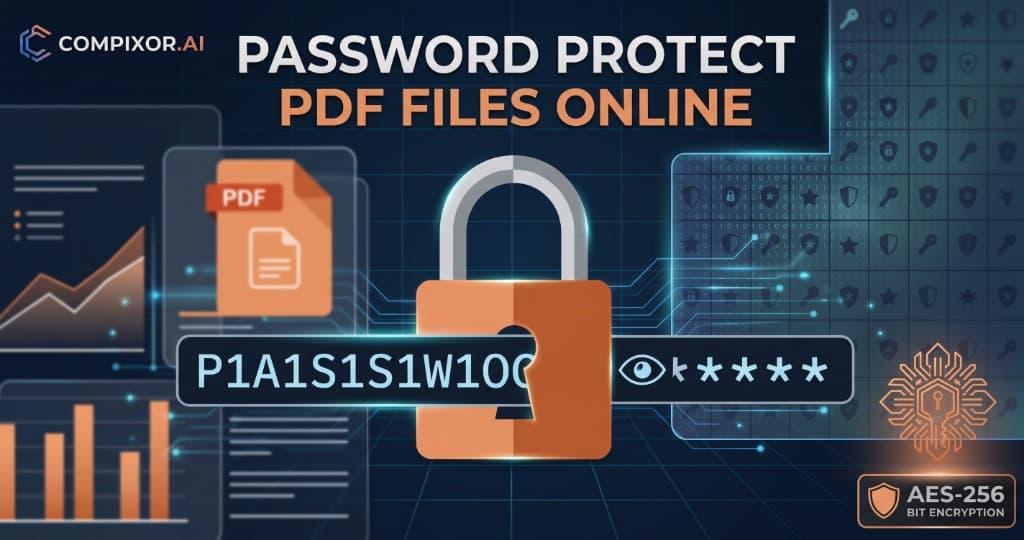
Client-Side Utility
Execute this tool right now in your browser
When you use typical cloud-based PDF tools, your files and plaintext passwords are sent across the web to third-party servers. With Compixor AI, the encryption and decryption engines execute entirely inside your local browser memory using WebAssembly (WASM) and the native WebCrypto API. Your confidential documents never leave your device.
Two PDF Passwords, Two Completely Different Purposes
The ISO 32000 PDF standard specifies two completely separate password mechanisms. Choosing the wrong one is the most common cause of document data leaks.
Open Password
Strong encryption that blocks opening.
Permission Password
Soft restrictions.
| Feature / Metric | Open Password (User Password) | Permission Password (Owner Password) |
|---|---|---|
| Primary Purpose | Blocks unauthorized file access entirely | Allows viewing, but restricts printing, copying, and editing |
| Typical Scenario | Financial records, medical histories, contracts, payroll slips | Sales decks, public tenders, eBooks, review drafts |
| Cryptographic Strength | High: Full document stream encrypted via AES-256 | Low: Permission flags inside document header |
| Can It Be Bypassed? | Mathematically impossible without the correct key | Yes, lenient readers or utilities can ignore flags |
| Compixor Processing | Prompts for password in-browser; decrypts purely in RAM | Strips permission flags instantly without file re-compression |
Why a Permission Password Is Not True Encryption
A permission password operates on a "gentleman’s agreement." Standards-compliant viewers (such as Adobe Acrobat or Apple Preview) respect these flags and disable the copy/print buttons. However, the raw text and images inside the PDF remain unencrypted in the file stream. If your document contains sensitive trade secrets, financial data, or PII, never rely on a permission password alone. Always pair it with an Open Password (AES-256).
How to Protect a PDF: 3 Strategic Security Scenarios
Select the recommended setup tailored to your specific privacy and distribution requirements:
- Scenario 1: Full Cryptographic Lockdown (Confidential Files): Best for contracts, tax forms, bank statements, personal health records. Open Compixor Protect PDF, select Set Open Password, choose a strong master password (minimum 12 characters combining uppercase, lowercase, numbers, and symbols), and download your AES-256 encrypted PDF. Anyone attempting to view without the key encounters an unbreakable cryptographic wall that cannot be read or indexed.
- Scenario 2: Viewable but Restricted (Anti-Scraping & Read-Only): Best for whitepapers, commercial proposals, client deliverables, draft portfolios. In Protect PDF, toggle Enable Permission Restrictions. Check the boundaries you wish to enforce: disable clipboard copying (Ctrl+C / Cmd+C), disable printing (including virtual "Print to PDF" cloning), and disable content editing & annotations. Apply settings directly in your browser.
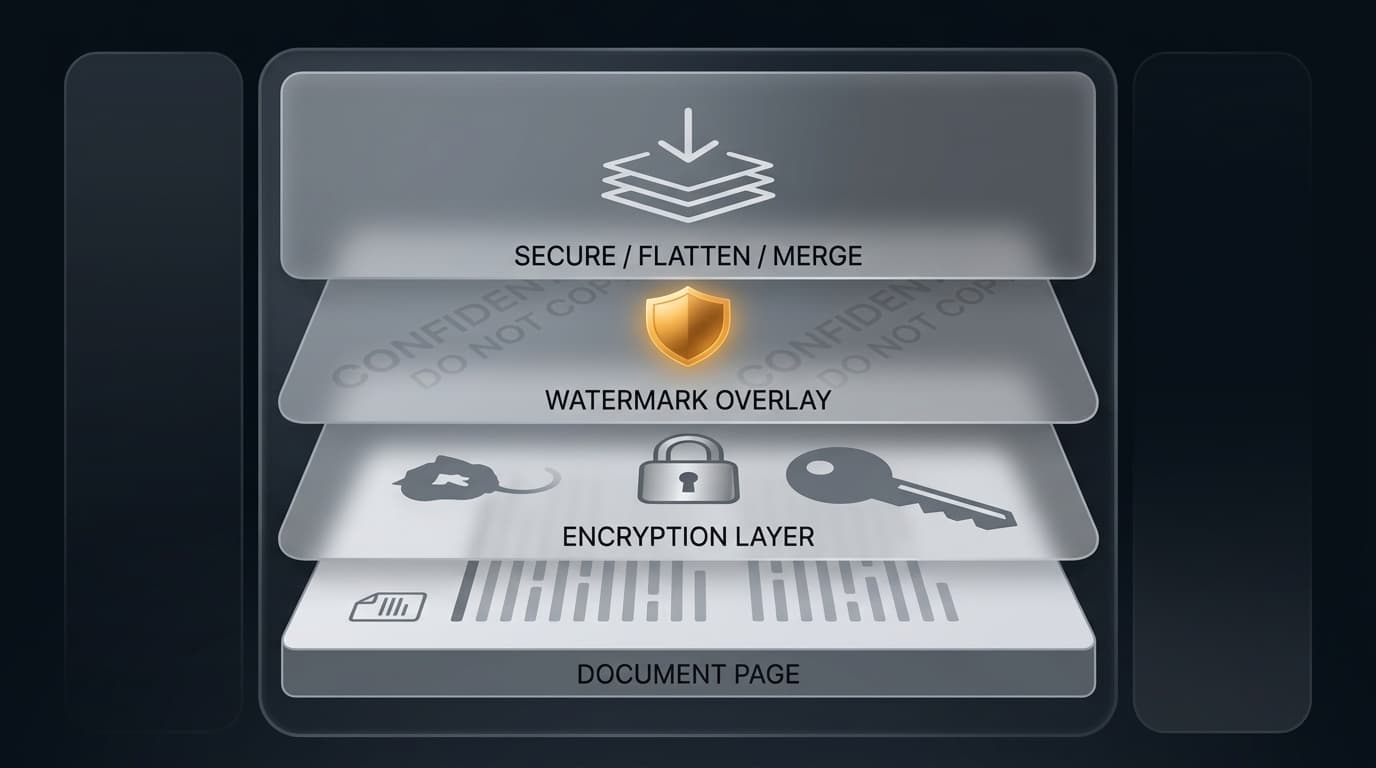
- Scenario 3: Enterprise Layered Security (The Zero-Trust Model): Best for competitive bidding, high-stakes legal submissions, and proprietary research. Follow the four-tier workflow: configure both passwords, stamp dynamic watermarks ("Confidential - Internal Review Only") across all pages, flatten PDF elements directly into the background vector stream so they cannot be stripped, and apply cryptographic digital signatures as the final step.
How to Legally Unlock a PDF & Remove Restrictions
Compixor Unlock PDF removes passwords and restriction dictionaries quickly and securely:
- Case A: Removing Permission Restrictions (Editing/Printing Disabled): If you can read the document but cannot print, highlight, or copy text, the file only carries owner restrictions. Simply drag and drop the file into Unlock PDF. Compixor automatically strips the permission dictionary in client-side RAM. Download your clean, completely unrestricted PDF instantly—no password entry needed.
- Case B: Removing an Open Password (Known Password): If the document prompts for a password before displaying any pages, upload the file to Unlock PDF. Enter the authorized password when prompted. The browser engine decrypts the document stream and exports an unencrypted version, eliminating repetitive password prompts for future archiving.
What if You Forgot the Open Password?
Because AES-256 encryption uses cryptographically sound key derivation, there is no backdoor. Neither Compixor nor any legitimate tool can bypass an unknown AES-256 user password. To recover access:
- Request the key: Contact the original document author or sender.
- Credential Vaults: Verify your secure password manager or corporate credential vault.
- Encrypted Channels: Search secure communication channels where credentials may have been exchanged.
Setup Recommendation Summary
Quick reference guide to matching your protection goal with the appropriate technical setup:
| Your Privacy & Distribution Goal | Recommended Setup |
|---|---|
| Prevent all unauthorized access | Open Password (AES-256 Encryption) |
| Distribute read-only documents without copying | Permission Password + Flattened Watermark |
| High-stakes confidential business proposals | Open Password + Permission Password + Watermarking + Flattening |
| Permanent personal/tax archiving | Open Password only (preserves selectable vector text) |
How to Use in 3 Simple Steps
Select PDF
Drop your confidential document into the client-side encryption tool.
Set Master Password
Choose an Open Password or configure custom permission boundaries.
Download Encrypted PDF
Save the protected file directly from browser RAM. Encrypted on all devices.
Experience The Ultimate Guide to PDF Protection and Unlocking: Passwords, Permissions, and Zero-Upload AES-256 Security
Zero file uploads, no watermarks, and no sign-up required. Your files remain completely secure in device RAM.
Launch Tool in Browser