How to Set Full Picture on WhatsApp DP Without Cropping: The Complete DP Resize Guide
Learn how to fit vertical and landscape photos into a full-size WhatsApp profile picture without cropping or losing HD quality.
Client-Side Utility
Execute this tool right now in your browser
You capture a stunning portrait or a wide group photo, go to update your WhatsApp profile picture, and run into an immediate roadblock: WhatsApp forces you to crop it. You either have to slice off your shoes and outfit, cut out background scenery, or crop someone out of the frame. Even worse, when you finally pick a cropped version, the avatar often ends up blurry, pixelated, or compressed. If you are wondering how to set full picture on WhatsApp DP without cropping or how to properly resize an image for WhatsApp DP without losing quality, you don't need to install risky third-party mobile apps full of pop-up ads. In this comprehensive guide, you will learn the exact pixel dimensions, aspect ratios, file size targets (in KB), and the easiest way to display full-size photos on your profile in crystal-clear HD.
Why Does WhatsApp Crop Your Display Picture?
WhatsApp's user interface standardizes every profile picture to a 1:1 square aspect ratio. Once uploaded, the application masks that square into a circular frame across your contact lists and active chat threads. Modern smartphone cameras shoot in rectangular dimensions: vertical photos (portraits) shoot in 9:16 or 3:4 aspect ratios, while horizontal photos (landscapes) shoot in 16:9 or 4:3 aspect ratios. When you attempt to upload a rectangular photo directly, WhatsApp's crop window cannot stretch horizontally or vertically. To show full DP on WhatsApp, you cannot simply force the circular aperture to widen—you must expand the background canvas around your photo into a 1:1 square before uploading it.
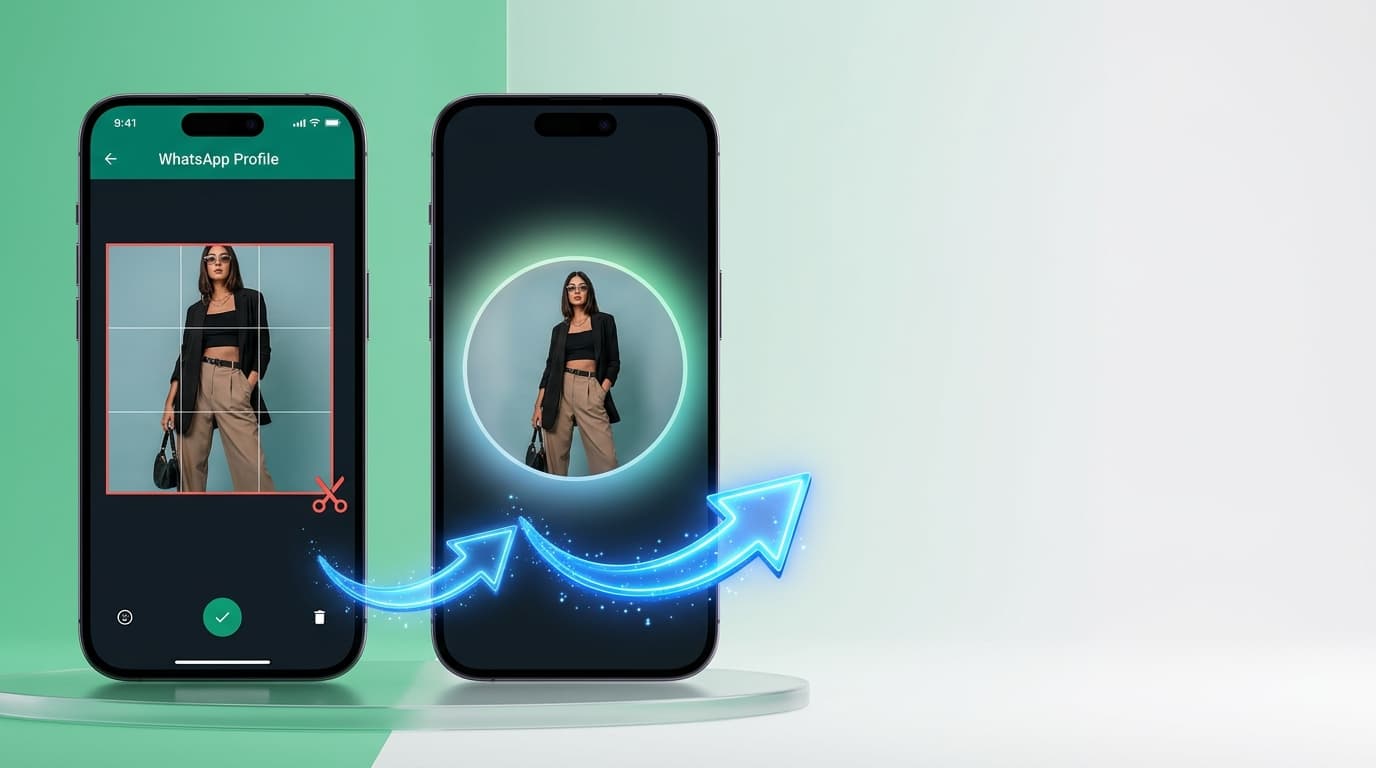
- Vertical Photos (Portraits): 9:16 or 3:4 aspect ratio cut off headers, shoulders, or shoes.
- Horizontal Photos (Landscapes): 16:9 or 4:3 aspect ratio slice away friends in group shots or panoramic scenery.
- Square Canvas Expansion: Expanding the surrounding canvas to 1:1 lets you preserve 100% of the original photo inside the frame.
What Is the Ideal WhatsApp DP Size in Pixels and KB?
To achieve high-definition clarity without triggering heavy algorithmic compression, match your upload to these technical specifications:
| Metric | Ideal Specification | Why It Matters |
|---|---|---|
| Aspect Ratio | 1:1 (Square) | Eliminates the crop frame completely on upload |
| Recommended Pixels | 1080 × 1080 px (or 2048 × 2048 px) | Retains razor-sharp edges on OLED & Retina displays |
| Minimum Display Size | 500 × 500 px (100 × 100 px thumbnail) | WhatsApp's standard system rendering scale |
| Optimal File Size in KB | 200 KB – 500 KB | Large enough for high bitrate; small enough to avoid compression blur |
| File Format | JPG or PNG | High compatibility and clean digital encoding |
The Circular Safe Zone Rule
While your avatar is uploaded as a square, WhatsApp displays it as a circle. Always maintain an internal margin: keep your face, hair, and critical subjects within the central 80% of the canvas. If your photo touches the outer four corners of the square, WhatsApp's circular mask will clip them.
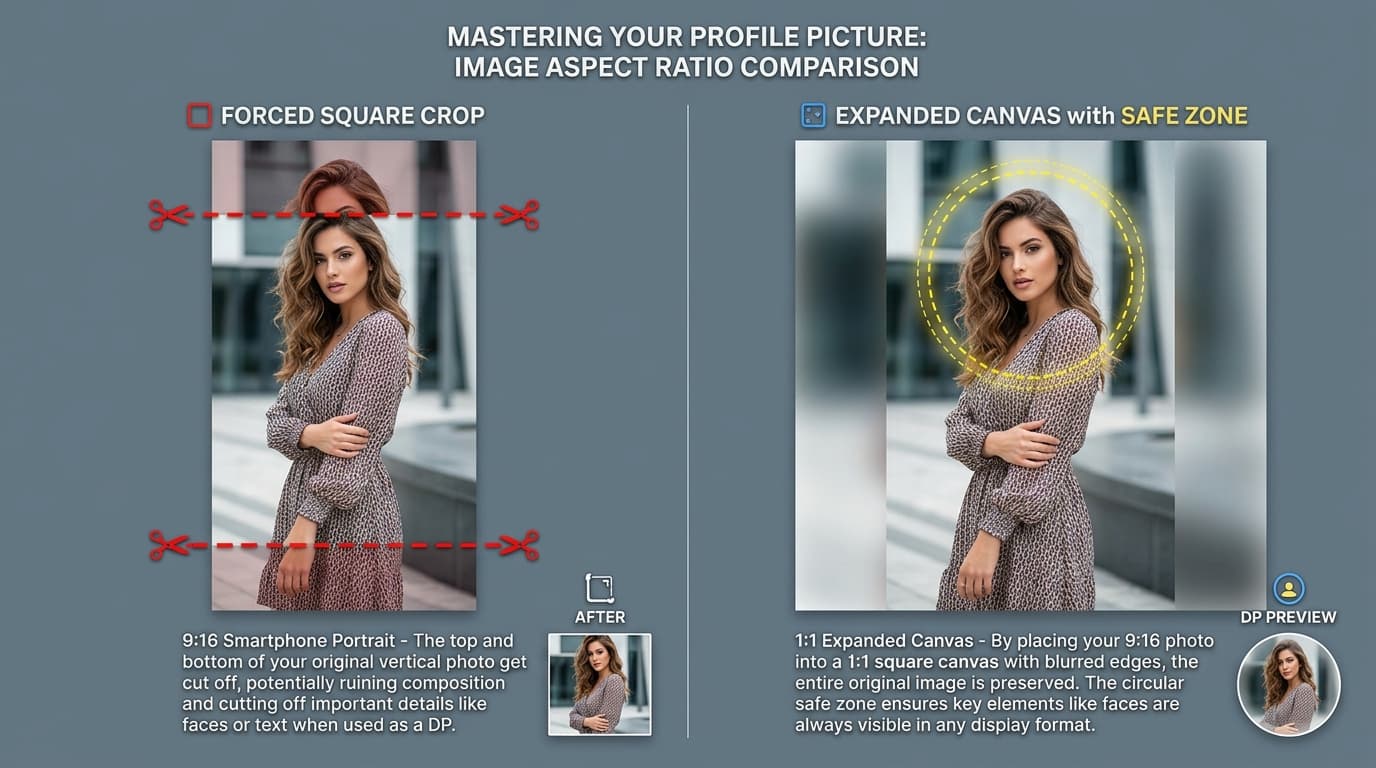
- Center the focal point: Keep eyes and facial features within the central circular diameter.
- Add 10% to 15% margin padding: Leave comfortable breathing room between the subject and canvas edges.
- Verify using circular preview overlays: Check how your avatar looks before saving to avoid awkward forehead or chin crops.
How to Set WhatsApp DP Full Size Without Any App
You can convert any rectangular image into a full-sized square profile avatar using two zero-install methods: a quick offline screenshot method or the aesthetic browser-based Full DP Maker.
- Method 1: Native Gallery Screenshot Hack — Open photo in your phone gallery, tap once to hide UI on black/white background, take a screenshot, and crop it to 1:1 square. Quick offline fix, though it leaves stark borders and suffers minor screenshot compression.
- Method 2: Compixor AI Full DP Maker — Professional in-browser canvas expander that adds aesthetic frosted blur borders or solid color fills right inside mobile Safari or Chrome without uploading files to remote servers.
DP Resize Across Other Platforms: Instagram, Facebook & LinkedIn
The 1:1 ratio is standard across social media, but each platform treats resolution differently:
- Instagram DP Resize: Instagram renders profile avatars at 320 × 320 pixels on desktop and roughly 110 × 110 pixels on mobile feeds. Uploading at 1080 × 1080 px ensures crispness across all screen densities.
- Facebook DP Resize: Facebook stores profile photos at 2048 × 2048 px for HD viewing, while displaying them at 170 × 170 pixels on desktop.
- LinkedIn Profile Avatar: LinkedIn accepts up to 8 MB, with an optimal square resolution of 800 × 800 px or 1080 × 1080 px.
DPI vs. Pixels: Why DPI Does Not Matter for Your WhatsApp DP
Many users search for dpi resize, dpi photo resize, or dpi and pixel resize hoping to fix blurry profile pictures. Here is the technical truth: DPI (Dots Per Inch) is strictly a physical print metric. It tells a physical printer how many droplets of ink to spray onto an inch of paper. DPI has zero impact on how an image looks on a smartphone, tablet, or monitor. Digital screens render imagery purely based on pixel dimensions and screen density (PPI). A 1080 × 1080 pixel photo displays identically on WhatsApp whether its metadata is set to 72 DPI or 600 DPI. Key Takeaway: If your goal is web and social media avatars, focus exclusively on pixel resolution (1080 × 1080 px) and file size in KB (under 500 KB). Save DPI adjustments for biometric passport prints and PDF document scanning.
Why Choose Compixor AI for Profile Picture Resizing?
Most online converters process your personal photos on remote cloud servers, posing privacy concerns and risking data leaks. Compixor AI runs 100% client-side:
- Zero Cloud Uploads: Processing happens locally inside your device's browser memory (RAM). Your private photographs never touch external servers.
- No Watermarks & No Sign-ups: Clean, full-resolution downloads without forced branding or payment walls.
- Lossless Export: Advanced browser-based rendering preserves authentic camera sharpness while optimizing file weights to prevent WhatsApp compression blur.
How to Use in 3 Simple Steps
Select Your Photo
Open the Full DP Maker in Safari or Chrome and choose your vertical portrait or landscape shot from your device gallery.
Choose Canvas Effect & Safe Margin
Choose Frosted Blur or Solid Color Fill, then adjust the margin slider so your face rests comfortably inside the circular safe zone.
Export in HD & Set on WhatsApp
Download your uncropped 1080 × 1080 square image, open WhatsApp Profile Settings, and apply it directly with zero crop cutoff.
Experience How to Set Full Picture on WhatsApp DP Without Cropping: The Complete DP Resize Guide
Zero file uploads, no watermarks, and no sign-up required. Your files remain completely secure in device RAM.
Launch Tool in Browser